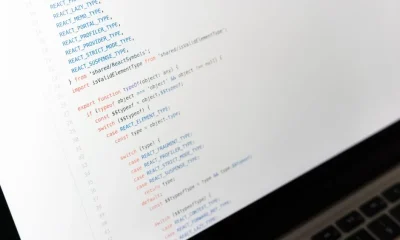

Next.js local fonts refer to the practice of self-hosting font files directly within a Next.js application, leveraging the framework’s built-in optimizations to enhance loading performance and user experience. With the introduction of the next/font module in Next.js 13, developers gained a highly optimized solution for managing both Google Fonts and local fonts, effectively eliminating external network requests and ensuring fonts are loaded efficiently without layout shifts.
This strategic approach directly addresses critical performance metrics, such as Cumulative Layout Shift (CLS) and First Contentful Paint (FCP), which are vital for user engagement and search engine rankings. By integrating fonts as first-party assets, organizations can achieve greater control over asset delivery, reduce reliance on third-party services, and ultimately deliver a more consistent and responsive user interface, directly impacting key business objectives like conversion rates and user retention.
The Strategic Imperative of Local Fonts in Next.js
Adopting local fonts within a Next.js application is not merely a technical preference; it is a strategic decision with significant implications for performance, user experience, and ultimately, the total cost of ownership (TCO) of a digital product. The core imperative stems from the desire to minimize external dependencies and maximize asset delivery speed. When fonts are served from a third-party content delivery network (CDN), each font request introduces an additional network round trip, DNS lookup, and TLS handshake. These micro-delays accumulate, particularly on slower networks or devices, leading to increased First Contentful Paint (FCP) and Largest Contentful Paint (LCP) times.
The next/font module, introduced in Next.js 13, provides a robust, zero-runtime JavaScript solution for handling fonts. For local fonts, this module automatically optimizes font loading by doing several crucial things: it automatically self-hosts font files, manages font fallbacks, ensures proper `font-display` CSS property application, and prevents layout shifts. This integrated approach bypasses the performance pitfalls associated with traditional `@font-face` declarations or relying on external font providers. From a business perspective, faster page loads translate directly into lower bounce rates, higher conversion rates, and improved search engine visibility, which are tangible returns on investment for engineering effort.
Consider the impact of Cumulative Layout Shift (CLS), a Core Web Vital metric. When fonts load asynchronously from external sources, the browser often renders text using a fallback font first, then swaps it with the intended custom font once it’s downloaded. This ‘flash of unstyled text’ (FOUT) or ‘flash of invisible text’ (FOIT) causes visual instability, shifting content around and creating a jarring user experience. Such shifts are not just an aesthetic issue; they can lead to users misclicking elements, reducing trust, and increasing frustration. By preloading and self-hosting local fonts with `next/font/local`, Next.js can calculate the correct font metrics and allocate space for the custom font before it’s even loaded, effectively eliminating CLS due to font loading.
Furthermore, local font management reduces reliance on external services, mitigating potential single points of failure. While major font CDNs are highly reliable, any outage or degradation of service can directly impact the visual integrity and performance of an application. Self-hosting provides greater control over the entire asset pipeline, which is a critical consideration for mission-critical applications where uptime and consistent performance are paramount. This control extends to security as well; reducing third-party script execution minimizes potential attack vectors. For organizations with strict compliance requirements, self-hosting fonts can also simplify data privacy assessments by keeping font asset requests within their own infrastructure.
The strategic value of local fonts extends to the development workflow. By integrating font assets directly into the Next.js build process, developers benefit from automatic optimizations like font subsetting, which removes unused glyphs to reduce file size. This not only speeds up delivery but also simplifies deployment and version control of font assets alongside the rest of the application codebase. This streamlined approach minimizes technical debt associated with managing external font resources and ensures that font assets are consistently optimized across all environments, contributing positively to team velocity and operational efficiency.
Implementing Local Fonts with `next/font/local` in Next.js
The recommended approach for implementing local fonts in Next.js 13 and later is through the next/font/local module. This module simplifies font optimization significantly, abstracting away much of the complexity traditionally associated with self-hosting fonts. To begin, ensure your font files (e.g., .woff2, .woff, .ttf) are placed within your project, typically in a dedicated public/fonts directory. This makes them accessible to the Next.js asset pipeline.
The first step involves importing the localFont function from next/font/local. You then define your custom font by calling this function, passing an object configuration that specifies the path to your font files and, optionally, their weights and styles. Next.js will automatically handle the loading, optimization, and injection of the necessary CSS.
// app/layout.js or components/fonts.js
import localFont from 'next/font/local';

// Define your local font
const myCustomFont = localFont({
  src: [
    { path: '../public/fonts/Inter-Regular.woff2', weight: '400', style: 'normal' },
    { path: '../public/fonts/Inter-SemiBold.woff2', weight: '600', style: 'normal' },
    { path: '../public/fonts/Inter-Bold.woff2', weight: '700', style: 'normal' }
  ],
  display: 'swap', // 'swap' is generally recommended for optimal UX
  variable: '--font-inter' // Optional: CSS variable name for easy access
});

export default function RootLayout({ children }) {
  return (
    <html lang="en" className={myCustomFont.className}>
      <body>{children}</body>
    </html>
  );
}
In this example, `src` is an array of objects, each pointing to a specific font file and defining its weight and style. This allows you to include multiple variations of your font. The `display` property is crucial for controlling font loading behavior; `swap` tells the browser to use a fallback font while the custom font loads, then swap it in once ready. This avoids a ‘flash of invisible text’ (FOIT) and prioritizes content readability. The `variable` property, if provided, creates a CSS variable that can be used throughout your application, like `var(–font-inter)`.
After defining the font, you apply it to your application. The most common pattern is to apply it globally in your root layout file (app/layout.js for App Router or pages/_app.js for Pages Router) by adding myCustomFont.className to the <html> or <body> tag. This makes the font available to all components. For more granular control, you can apply the font class to specific elements or components.
For instance, to apply the font to a specific component or element using the CSS variable:
/* app/globals.css */
:root {
  /* Access the font variable defined in localFont */
  font-family: var(--font-inter);
}

.my-component {
  font-family: var(--font-inter), sans-serif;
  /* Fallback to generic sans-serif */
}
This method ensures that Next.js automatically handles font preloading, subsetting, and caching, providing a highly optimized delivery mechanism. The module generates the necessary `@font-face` rules and injects them into the stylesheet, ensuring that the fonts are loaded without blocking rendering and without causing layout shifts. This level of automation significantly reduces the engineering overhead typically associated with manual font optimization, allowing development teams to focus on core application logic rather than intricate CSS font declarations and performance tweaks.
When working with different font weights and styles, it’s essential to define each variant correctly in the `src` array. This informs Next.js about the available font assets. If a particular weight or style is requested in CSS but not defined in `localFont`, the browser might synthesize it, leading to visually inconsistent results. Always strive to include all necessary font variations to maintain visual fidelity across your application. This meticulous approach to font asset declaration is fundamental for ensuring a polished and performant user interface, which directly correlates with positive user perception and brand consistency.
Advanced Font Loading Strategies and Performance Considerations
Beyond basic implementation, advanced strategies for local font loading are crucial for achieving optimal performance and user experience in high-stakes Next.js applications. These techniques focus on minimizing font file sizes, intelligently loading assets, and ensuring visual stability. One of the most impactful strategies is **font subsetting**. Full font files often contain thousands of glyphs, many of which are never used in a specific application (e.g., Cyrillic characters if your application only supports English). Subsetting involves removing these unused glyphs, drastically reducing file size. While `next/font` provides some automatic subsetting for Google Fonts, for local fonts, you might need to perform this manually during your build process using tools like `fonttools` (Python) or `glyphhanger` (Node.js). This can cut font file sizes by 50-80%, leading to faster downloads and improved FCP.
Another critical consideration is the **`font-display` CSS property**. This property dictates how a font face is displayed based on whether and when it is downloaded and ready to use. The most common values are `swap`, `block`, `fallback`, and `optional`.
swap: Provides an immediate fallback font, then swaps it with the custom font once loaded. This prevents FOIT (flash of invisible text) but can cause FOUT (flash of unstyled text) and potential CLS if fallback font metrics differ significantly.block: Renders invisible text until the font loads (FOIT). This is generally discouraged for performance-critical applications as it blocks content rendering.fallback: Similar to `swap` but with a much shorter block period (around 100ms) before swapping.optional: Gives the browser the option to use the custom font if it’s available quickly, otherwise it sticks with the fallback. This is the most performance-sensitive option, prioritizing speed over custom typography.
For most applications, `display: ‘swap’` offers a good balance between custom typography and user experience, which is why it’s often the default recommendation for `next/font/local`.
**Preloading fonts** is another powerful technique. By adding `` tags to your HTML, you instruct the browser to fetch critical font resources as a high-priority task, often before the main CSS or JavaScript. `next/font` handles this automatically for you, but understanding the underlying mechanism is important. For non-critical fonts or fonts loaded later, consider using `rel=”stylesheet” media=”print” onload=”this.media=’all'”` to load them asynchronously, preventing render-blocking behavior. This ensures that only essential fonts impede the initial render, while less critical typographic elements load gracefully in the background.
When integrating these strategies, it’s vital to benchmark and monitor their impact on Core Web Vitals. Tools like Lighthouse, WebPageTest, and Google’s PageSpeed Insights provide invaluable data on FCP, LCP, CLS, and TBT (Total Blocking Time). A common pitfall is to load too many font variations (too many weights, styles, or languages), negating the benefits of local hosting. Prioritize the most critical font variations and defer or lazy-load less essential ones. For instance, if a specific font weight is only used in a deep-nested component, it might be more efficient to load it only when that component is rendered, rather than globally. This judicious approach to font asset management is a hallmark of high-performance web engineering.
Finally, consider the **impact of font formats**. `WOFF2` offers superior compression and browser support compared to older formats like `WOFF` or `TTF`. Always prioritize `WOFF2` as your primary format, providing `WOFF` as a fallback for older browsers where necessary. By providing multiple formats, you ensure broad compatibility while delivering the smallest possible file sizes to modern browsers. This multi-format strategy, combined with intelligent preloading and subsetting, forms the bedrock of a truly optimized local font implementation in Next.js, directly contributing to a superior and stable user experience.
Managing Font Fallbacks and Variable Fonts for Resilient Design
Effective font management extends beyond simply loading custom typefaces; it encompasses building resilience into your typography through robust fallback mechanisms and leveraging the flexibility of variable fonts. A well-defined **font fallback stack** is critical for ensuring visual consistency and preventing text rendering issues in scenarios where custom fonts fail to load or are intentionally omitted for performance reasons. The `next/font` module simplifies this by allowing you to specify a generic font family (e.g., `sans-serif`, `serif`, `monospace`) as a fallback within your CSS. When the custom font is applied, the browser first attempts to render with it. If it’s unavailable, it gracefully falls back to the next font in the stack, eventually settling on a generic system font.
// Example with a fallback
const myCustomFont = localFont({
  src: '../public/fonts/MyFont-Regular.woff2',
  display: 'swap',
  fallback: ['Helvetica Neue', 'Helvetica', 'Arial', 'sans-serif'], // Explicit fallback stack
});

// In CSS, you might still define a generic fallback to be safe
:root {
  font-family: var(--font-my-custom-font, Helvetica, Arial, sans-serif);
}
The `fallback` array in `localFont` is a powerful feature that allows you to specify a precise list of fonts the browser should try before resorting to a generic family. This provides a layered approach to ensure that even in worst-case scenarios, your content remains readable and your layout largely intact. Carefully selecting fallback fonts that have similar x-heights and character widths to your primary custom font can significantly reduce layout shifts when the custom font eventually loads, thereby improving your CLS scores.
**Variable fonts** represent a significant advancement in web typography, offering unparalleled flexibility and efficiency. Instead of loading multiple separate files for each weight, width, or style (e.g., `Light`, `Regular`, `Bold`, `Italic`), a single variable font file contains all these variations. This dramatically reduces the total file size of your font assets and simplifies font management. With `next/font/local`, integrating variable fonts is straightforward. You point to the single variable font file, and then you can access its axes (weight, width, optical size, etc.) directly via CSS.
// Defining a variable font
const myVariableFont = localFont({
  src: '../public/fonts/MyVariableFont.woff2',
  display: 'swap',
  variable: '--font-variable-myfont',
});

export default function RootLayout({ children }) {
  return (
    <html lang="en" className={myVariableFont.className}>
      <body>{children}</body>
    </html>
  );
}
Once defined, you can manipulate the font’s properties using CSS. For example, to adjust the weight of a variable font:
.heading {
  font-family: var(--font-variable-myfont);
  font-variation-settings: 'wght' 700; /* Set weight to 700 */
}

.paragraph {
  font-family: var(--font-variable-myfont);
  font-variation-settings: 'wght' 400, 'wdth' 100; /* Weight 400, normal width */
}
The `font-variation-settings` CSS property (or its shorthand `font-weight`, `font-stretch`, etc., for standard axes) allows fine-grained control over the font’s appearance. This not only offers creative freedom but also provides significant performance benefits by replacing multiple static font files with a single, highly efficient variable font. From a TCO perspective, using variable fonts reduces bandwidth consumption, simplifies asset caching, and decreases the number of HTTP requests, all contributing to a more performant and cost-effective application. For complex applications, integrating secure and resilient authentication is also critical, often requiring robust backend solutions like those provided by Next.js Laravel authentication patterns, ensuring that while the frontend is performant, the backend is equally secure.
The combination of intelligent font fallbacks and the adoption of variable fonts builds a resilient and adaptive typographic system. It ensures that your application maintains its visual integrity and performance across a wide range of network conditions and device capabilities, minimizing user frustration and maximizing content readability. This strategic foresight in font management is a hallmark of well-engineered web applications that prioritize both aesthetics and robust functionality, significantly enhancing the overall user experience and reducing the potential for technical debt related to font rendering issues.
Optimizing Font Delivery and Caching Strategies
Efficient font delivery and robust caching strategies are paramount for sustained high performance in Next.js applications utilizing local fonts. While `next/font` automates many optimizations, understanding the underlying mechanisms allows for fine-tuning and troubleshooting. The primary goal is to ensure that font files are downloaded quickly, stored effectively by the browser, and re-served from cache whenever possible, minimizing redundant network requests. For local fonts, Next.js typically places them in the `_next/static/media` directory during the build process, serving them with immutable URLs and appropriate cache headers.
By default, Next.js assets, including fonts, are served with cache-control headers that encourage aggressive caching by the browser and intermediate CDNs. For production deployments, configuring your CDN (e.g., Cloudflare, Vercel Edge Network) to cache these static assets effectively is crucial. A typical `Cache-Control` header for immutable assets like fonts might look like `public, max-age=31536000, immutable`. The `immutable` directive tells the browser that the resource will never change, allowing it to skip revalidation requests entirely until the `max-age` expires. This significantly reduces server load and speeds up subsequent page loads for returning users.
Beyond browser and CDN caching, consider **Service Worker caching** for offline capabilities or more advanced caching strategies. A Service Worker, often integrated via a library like Workbox in Next.js PWA setups, can intercept network requests and serve font files directly from its cache, even when offline. This provides an additional layer of resilience and performance, particularly for users with intermittent network connectivity. While `next/font` handles the initial loading, a Service Worker can ensure fonts are available instantly after the first visit, regardless of network conditions.
When deploying to environments that might not automatically handle `Cache-Control` headers optimally, it’s important to explicitly configure your web server or CDN. For example, in a custom Nginx setup, you might define rules to serve font files with specific `Expires` and `Cache-Control` headers:
# Nginx configuration example for font caching
location ~* \.(woff2|woff|ttf|eot|svg)$ {
  add_header Access-Control-Allow-Origin "*";
  expires 1y;
  add_header Cache-Control "public, max-age=31536000, immutable";
}
This ensures that font files are cached for a year and are accessible cross-origin, which is often necessary if your fonts are served from a different subdomain or CDN. It’s also vital to use **content-addressable filenames** (e.g., `Inter-Regular.abcdef123.woff2`). Next.js handles this automatically by hashing file contents, ensuring that when a font file changes, its URL changes, effectively busting the cache. This prevents users from being served stale font versions and ensures that updates are propagated correctly.
Furthermore, consider **HTTP/2 or HTTP/3** for serving your assets. These protocols allow for multiplexing requests over a single connection, reducing the overhead of multiple requests for different font files. This is particularly beneficial when loading several font weights or styles. For advanced applications, especially those focused on rapid iteration and high performance, exploring a Next.js example that demonstrates robust caching and asset delivery mechanisms can provide valuable insights into real-world implementations. By combining `next/font` with thoughtful CDN configuration, content-addressable filenames, and modern HTTP protocols, you can construct an exceptionally efficient font delivery pipeline that minimizes latency and maximizes application responsiveness, contributing significantly to a superior user experience and lower operational costs.
Benchmarking and Monitoring Font Performance
For any performance-critical application, the adage, “what gets measured, gets managed,” holds especially true for font loading. Benchmarking and continuous monitoring of font performance are indispensable for ensuring that your Next.js application maintains optimal speed and user experience over time. Relying solely on local development observations can be misleading, as production environments introduce variables like network latency, device variability, and caching behaviors that significantly impact real-world performance. A robust monitoring strategy involves both synthetic testing and Real User Monitoring (RUM).
**Synthetic monitoring** tools like Lighthouse, WebPageTest, and Google PageSpeed Insights provide controlled environments to simulate various network conditions and device types. These tools offer detailed reports on key metrics affected by font loading:
- **First Contentful Paint (FCP)**: How long it takes for the first content (including text) to be rendered. Slow font loading can directly impact this.
- **Largest Contentful Paint (LCP)**: The time it takes for the largest content element (often a hero image or large block of text) to become visible. Fonts are often part of this.
- **Cumulative Layout Shift (CLS)**: Measures visual stability. Font swaps (FOUT) are a common cause of high CLS scores.
- **Total Blocking Time (TBT)**: Quantifies the total time during which the main thread was blocked, preventing user input. Excessive font parsing or large font files can contribute to TBT.
Regularly running these tests, especially after font changes or major deployments, helps catch regressions early. For example, if you introduce a new font weight without subsetting it, Lighthouse can immediately flag the increased font file size and its impact on FCP.
**Real User Monitoring (RUM)** complements synthetic testing by collecting performance data from actual users in their diverse environments. Tools like Google Analytics (with Web Vitals reporting), Datadog RUM, or custom RUM solutions provide invaluable insights into how fonts are performing for your actual user base. RUM can reveal issues that synthetic tests might miss, such as performance bottlenecks specific to certain geographic regions, device types, or network providers. Analyzing RUM data for font-related metrics helps prioritize optimizations that will have the greatest impact on your users.
When evaluating font performance, pay close attention to the **network waterfall diagram** provided by browser developer tools or WebPageTest. This visual representation shows the sequence and duration of all network requests. Identify font files and observe their loading order, duration, and whether they are render-blocking. Look for instances where font requests are initiated late or take an unusually long time. This can indicate issues with preloading, incorrect `font-display` values, or inefficient server configurations.
Furthermore, ensure that your build process includes checks for font optimization. Tools like `webpack-bundle-analyzer` can visualize the size of your font assets within your overall JavaScript bundle (if embedded) or as separate static assets. This helps identify unexpectedly large font files. Implementing automated performance budgets in your CI/CD pipeline can prevent large font files from being deployed. For instance, you could set a rule that fails the build if the total font asset size exceeds a certain threshold (e.g., 500KB). This proactive approach ensures that font optimization remains a priority throughout the development lifecycle, preventing performance debt from accumulating.
Effective benchmarking and monitoring are not one-time activities; they are continuous processes that underpin a culture of performance excellence. By systematically measuring and analyzing font loading behavior, organizations can make data-driven decisions that enhance user satisfaction, improve SEO, and safeguard their application’s long-term viability. This strategic oversight is particularly important for applications like a Next.js e-commerce template, where every millisecond of load time can directly impact conversion rates and revenue.
Common Pitfalls and Troubleshooting Local Font Issues
Even with the sophisticated tooling provided by `next/font`, developers can encounter several common pitfalls when implementing local fonts. Understanding these issues and their troubleshooting steps is crucial for maintaining application stability and performance. One frequent problem is **incorrect font file paths**. The `src` property in `localFont` expects paths relative to the current file where `localFont` is called. A common mistake is using absolute paths or paths relative to the project root, leading to `404 Not Found` errors for font files during build or runtime. Always double-check the path, ensuring it correctly points to your font assets.
Another common issue is **Font Awesome or icon font integration**. While `next/font/local` is excellent for standard text fonts, icon fonts (like Font Awesome or Material Icons) often require a different approach due to their unique CSS and class-based usage. Directly importing them with `localFont` might not yield the desired results. For these, it’s often more effective to import their CSS file directly or use a dedicated component library that handles their loading. Attempting to force icon fonts through `localFont` can lead to broken icons or unexpected rendering behavior, increasing technical debt.
**FOUC (Flash of Unstyled Content) or FOUT (Flash of Unstyled Text) issues** can persist if `font-display` is not correctly configured or if fallback fonts are poorly chosen. If you see a brief moment where text appears in a generic font before snapping to your custom font, it’s a FOUT. If the text is invisible initially, it’s FOIT. Ensuring `display: ‘swap’` is set and that your fallback fonts are visually similar to your custom font can mitigate CLS. If FOUC occurs on the initial load, it might indicate that your CSS (which defines the font application) is not being loaded as a critical resource or is being blocked by JavaScript execution.
**Incorrect font weight or style application** is another pitfall. If you define only `Inter-Regular.woff2` with `weight: ‘400’` in `localFont`, but then try to apply `font-weight: 700` in your CSS, the browser might synthesize a bold version, which often looks inferior to a properly designed bold font. Always include all necessary font weights and styles in your `localFont` definition and use them consistently. If a specific weight isn’t loading, verify that the font file for that weight exists and its path is correct. This level of detail is paramount for maintaining design fidelity.
**Performance degradation due to excessive font file sizes** can occur if subsetting is neglected. Even with local hosting, a 5MB font file will still be slow to download. Regularly audit your font assets. If you’re supporting multiple languages, consider dynamic loading of language-specific font subsets only when needed, rather than bundling all glyphs upfront. Tools like `font-display-analyzer` can help identify font loading bottlenecks and recommend optimizations.
Finally, **Cross-Origin Resource Sharing (CORS) issues** can arise if your font files are hosted on a different domain or subdomain than your Next.js application, and the server doesn’t send the appropriate `Access-Control-Allow-Origin` headers. This will block the browser from loading the fonts, resulting in invisible text. While `next/font` typically handles local paths correctly, if you’re using a custom asset server, ensure CORS headers are correctly configured. A robust Composer Create Project Laravel setup, for example, would ensure proper asset serving configuration from the backend if it were to serve fonts, though Next.js typically manages this on the frontend.
Troubleshooting these issues often involves inspecting network requests in browser developer tools, checking console logs for errors, and validating CSS application. A systematic approach to debugging, starting from file paths and moving to network requests and CSS properties, will typically uncover the root cause of most local font issues, ensuring your application’s typography remains pristine and performant.
The Business Value of Optimized Typography
The perceived technicality of font optimization often overshadows its profound business impact. Optimized typography, facilitated by strategies like local font hosting in Next.js, directly translates into tangible business value across several critical domains. At its core, superior typography enhances **brand perception and credibility**. A website or application with crisp, consistent, and fast-loading fonts projects professionalism and attention to detail. This subtle yet powerful signal builds trust with users, which is invaluable for any business, whether it’s an e-commerce platform, a SaaS product, or a corporate portal. Inconsistent font rendering, slow loading, or layout shifts create an impression of sloppiness, directly undermining brand authority and user confidence.
From a **user experience (UX)** standpoint, optimized fonts are foundational. Readability and legibility are paramount for content consumption. If users struggle to read text due to FOUT, FOIT, or janky layout shifts, their engagement will suffer. Faster font loading contributes to a smoother, more fluid interaction, reducing cognitive load and increasing user satisfaction. Satisfied users are more likely to return, recommend the service, and complete desired actions, directly impacting retention and conversion metrics. For instance, in an educational platform, if students face constant layout shifts, their ability to focus and learn diminishes, leading to poor outcomes and churn.
The direct correlation between performance and business outcomes cannot be overstated. Search engines, particularly Google, prioritize user experience as a ranking factor, with Core Web Vitals (including CLS, LCP, FCP) playing a significant role. By optimizing local fonts to eliminate CLS and improve FCP/LCP, Next.js applications gain a competitive edge in search rankings. Higher rankings mean increased organic traffic, which translates into lower customer acquisition costs and a wider audience reach. A few milliseconds saved on font loading can accumulate into significant gains in organic visibility and, consequently, revenue.
Moreover, optimized typography contributes to **operational efficiency and reduced TCO**. By leveraging `next/font` for local fonts, engineering teams spend less time debugging font rendering issues, optimizing CSS, or managing third-party font services. The automated optimizations reduce the need for manual interventions, freeing up valuable developer resources to focus on feature development and innovation. This reduction in technical debt and maintenance overhead directly impacts the engineering budget and allows for faster iteration cycles. This is particularly relevant for organizations building complex applications where developer velocity is a key strategic advantage.
Consider the cumulative effect: a faster, more reliable, and visually appealing application leads to higher user engagement, better SEO performance, and a more efficient development process. These benefits compound over time, creating a virtuous cycle of growth and profitability. The investment in optimizing local fonts is not merely a technical task; it is a strategic investment in the long-term success and sustainability of a digital product. Businesses that understand this direct link between technical excellence and commercial advantage are better positioned to thrive in competitive digital landscapes, creating robust and resilient solutions that resonate with their target audience.
Architectural Considerations for Multi-Language and Dynamic Font Needs
For global applications or those with dynamic content, architectural considerations for local fonts extend beyond simple static inclusion. Multi-language support and on-demand font loading introduce complexities that require thoughtful design to maintain performance and manage asset size effectively. A primary challenge with multi-language applications is the **large character sets** required for languages like Chinese, Japanese, Korean (CJK), or extensive Latin sets with diacritics. Bundling all these glyphs into a single font file can result in massive file sizes, negating the benefits of local hosting. The strategic solution involves **dynamic font loading and subsetting based on locale or content**.
One architectural pattern is to separate font assets by language. Instead of a single `myCustomFont`, you might define `myCustomFontEn`, `myCustomFontZh`, etc., each containing only the necessary glyphs for its respective language. These can then be loaded conditionally based on the user’s detected locale or the content being displayed. For instance, if a user switches their language preference, the application could dynamically import the relevant font definition and apply its class. This requires careful state management and potentially a custom font loader component that handles the conditional import.
// components/FontLoader.js
import { useEffect, useState } from 'react';
import localFont from 'next/font/local';

const fontMap = {
  en: localFont({ src: '../public/fonts/MyFont-En.woff2', display: 'swap' }),
  zh: localFont({ src: '../public/fonts/MyFont-Zh.woff2', display: 'swap' }),
  // ... other languages
};

export default function FontLoader({ locale, children }) {
  const [currentFont, setCurrentFont] = useState(fontMap[locale]);

  useEffect(() => {
    setCurrentFont(fontMap[locale]);
  }, [locale]);

  return <div className={currentFont?.className || ''}>{children}</div>;
}
This approach leverages Next.js’s code splitting capabilities, ensuring that only the fonts relevant to the current user’s context are downloaded. The overhead of defining multiple `localFont` instances is minimal, and the performance gains from reduced file sizes are significant. For more advanced scenarios, **runtime subsetting** can be considered, where a server-side process (or an edge function) dynamically generates font subsets based on the specific text content of a page. While more complex to implement, this offers the ultimate optimization by delivering only the exact glyphs required.
Another architectural consideration is the integration of **third-party content that might introduce its own fonts**. If your application embeds widgets or content from external sources, these might load their own fonts, potentially causing conflicts, performance issues, or CLS. A robust strategy involves sandboxing such content using iframes where possible, or carefully auditing third-party scripts to understand their font loading behavior. For critical third-party components, you might consider overriding their default fonts with your locally hosted ones using CSS, ensuring a consistent brand experience and maintaining performance control.
For applications where content is highly dynamic and unpredictable, such as user-generated content platforms, relying solely on pre-subsettled fonts can be challenging. In such cases, a hybrid approach might be necessary: a core set of universally needed glyphs are locally hosted, while less common glyphs (e.g., emojis, rare symbols) are fetched on demand or from a Google Fonts integration (which `next/font` also supports with optimizations). This balances performance for common use cases with flexibility for edge cases. These architectural decisions are not trivial and require a deep understanding of application requirements, user demographics, and long-term scalability goals. For organizations building complex systems, whether it’s a new application or an extension of an existing one, careful architectural planning is key to mitigating technical debt and ensuring a performant and maintainable codebase, a principle also central to developing resilient systems like those discussed in Next.js examples focusing on scalability.
The Cost Implications of Font Choices and Optimization
The choice and optimization of fonts, particularly the decision to use local fonts in Next.js, carry significant cost implications that extend beyond direct licensing fees. These costs manifest in various forms, impacting infrastructure, development, maintenance, and ultimately, the total cost of ownership (TCO) of the application. Understanding these factors is crucial for making informed strategic decisions that balance performance with budgetary constraints.
Infrastructure Costs
When using local fonts, the font files are hosted on your own servers or CDN. This directly impacts **bandwidth consumption** and **storage costs**. While individual font files are small, for high-traffic applications, the cumulative bandwidth for serving fonts to millions of users can become substantial. Optimized local fonts (e.g., WOFF2 format, subsetting) significantly reduce file sizes, directly lowering bandwidth usage. Conversely, unoptimized or excessively large font sets can lead to higher CDN egress fees. For example, a 500KB font file served to 1 million users daily consumes 500GB of bandwidth daily. At typical CDN rates of $0.05/GB, this is $25/day or $750/month just for that single font. Optimizing it to 100KB reduces this to $150/month.
| Cost Factor | Impact of Unoptimized Fonts | Impact of Optimized Local Fonts | Typical Monthly Cost Range (Illustrative) |
|---|---|---|---|
| Bandwidth / CDN Egress | Higher data transfer, increased fees | Significantly reduced data transfer, lower fees | $50 – $1,000+ (depending on traffic) |
| Storage (CDN/Server) | Larger storage footprint for unoptimized files | Minimal storage footprint | $5 – $50 |
| Server Load (Origin) | More requests to origin for external fonts or unoptimized local fonts | Fewer, cached requests; reduced origin load | Indirect, but can save on scaling costs |
| Third-Party Font Service Fees | Subscription costs for premium fonts (e.g., Adobe Fonts) | Eliminated if using self-hosted free fonts; licensing for commercial fonts (one-time/perpetual) | $0 – $50/month (for services) |
Development and Maintenance Costs
The initial **development effort** to implement `next/font/local` is relatively low, especially compared to manually managing `@font-face` rules. However, advanced optimizations like manual subsetting, dynamic loading for multi-language sites, or custom server-side font generation introduce additional engineering hours. This upfront investment, however, often pays off in reduced **maintenance overhead**. A well-configured `next/font` setup is largely set-and-forget, minimizing future debugging and performance tuning efforts related to fonts.
Conversely, relying on external font services can introduce maintenance costs related to API changes, service outages, or compliance issues. If a third-party font provider changes its API or experiences downtime, it requires immediate developer intervention. Self-hosting local fonts provides greater control, reducing this specific type of operational risk. The cost of developer time for troubleshooting or re-implementing font solutions can range from $50 to $200 per hour, so minimizing these reactive tasks is a direct cost saving.
Performance-Related Business Costs
This is perhaps the most significant, albeit indirect, cost. Poor font loading performance leads to:
- **Increased Bounce Rates:** Users abandon slow-loading pages, costing potential conversions. Studies show even a 1-second delay can lead to a 7% reduction in conversions.
- **Lower Conversion Rates:** A visually unstable or slow-to-render page diminishes trust and discourages users from completing purchases, sign-ups, or other desired actions.
- **Reduced SEO Rankings:** Poor Core Web Vitals, heavily influenced by font loading, can negatively impact search engine visibility, leading to lower organic traffic and higher marketing spend to compensate.
- **Brand Damage:** A slow or janky user experience erodes brand perception and customer loyalty, leading to long-term revenue loss.
Quantifying these costs can be challenging, but for an e-commerce site generating $1 million in monthly revenue, a 1% drop in conversion due to slow fonts is $10,000 in lost revenue monthly. Optimized fonts directly mitigate these risks, representing a significant return on investment. The typical range of cost variation for font optimization depends heavily on project complexity, existing infrastructure, and the specific performance goals. For simple applications, costs are minimal; for large-scale, international platforms, the investment in advanced font architecture can be substantial, but the ROI in performance and user retention is often even greater.
Integrating Local Fonts into Your Next.js Development Workflow
Integrating local fonts into a Next.js development workflow effectively ensures consistency, performance, and maintainability across the software development lifecycle. Beyond the initial setup, the workflow should encompass version control, testing, and deployment considerations. A key aspect is treating font files as **first-class assets** within your repository. Storing them in a designated `public/fonts` directory and committing them to Git ensures that all developers work with the same font versions and that fonts are consistently available across different environments.
For larger teams or projects with frequent design updates, consider implementing a **font asset management strategy**. This might involve a centralized repository for approved font files, clear naming conventions (e.g., `[FontFamily]-[Weight].[Format]`), and possibly automated scripts to generate optimized subsets. This prevents ‘font sprawl’ and ensures that only necessary font variations are included in the project, reducing the risk of accidental inclusion of unoptimized or redundant files.
**Development and testing environments** should accurately reflect production font loading behavior. While `next/font` handles much of the optimization, it’s crucial to test font rendering and performance on various devices and network conditions during development. Using browser developer tools to simulate slow network speeds (`throttling`) can help catch FOUT or CLS issues early. Automated end-to-end tests (e.g., with Playwright or Cypress) can include visual regression testing to detect unintended font changes or layout shifts, ensuring that new features or updates don’t inadvertently break existing typography.
During the **build process**, Next.js automatically handles the optimization and hash-based naming of local font files, ensuring efficient caching and cache-busting on updates. However, for custom subsetting or multi-language dynamic loading, your CI/CD pipeline might need additional steps. This could involve running a script to generate specific font subsets based on content or locale before the Next.js build command. This ensures that only the minimal required font data is shipped to production, maintaining optimal performance. A robust CI/CD pipeline, often seen in sophisticated Next.js e-commerce templates, is critical for automating these optimization steps.
For **deployment**, ensure your hosting environment (Vercel, AWS S3/CloudFront, etc.) is configured to serve static assets, including fonts, with appropriate `Cache-Control` headers. Vercel, for instance, handles this automatically for Next.js deployments. If deploying to a custom server, ensure the server configuration (e.g., Nginx, Apache) explicitly sets long cache durations and `immutable` directives for font files. This ensures that once a user downloads a font, it’s cached for as long as possible, reducing subsequent load times.
Finally, **documentation** is key. Maintaining clear documentation on how fonts are managed, how to add new ones, and specific optimization techniques used helps onboard new team members and reduces tribal knowledge. This includes guidelines on font licensing, ensuring compliance and avoiding legal issues. By embedding local font optimization deeply into your development workflow, from initial design to final deployment, you build a resilient, performant, and maintainable application that consistently delivers a superior user experience, contributing to both developer efficiency and business success.
Factors That Affect Development Cost
- Bandwidth and CDN egress fees
- Storage costs for font files
- Development time for implementation and optimization
- Maintenance and troubleshooting efforts
- Licensing fees for commercial fonts
- Impact on conversion rates and SEO due to performance
The cost implications for font choices and optimization vary significantly based on application scale, traffic volume, and the extent of optimization required, with specific dollar amounts detailed within the article body.
Implementing local fonts in Next.js, particularly through the optimized next/font module, is a strategic imperative for any organization prioritizing performance, user experience, and long-term maintainability. By taking control of font asset delivery, applications can significantly reduce critical performance metrics like CLS and FCP, enhance brand perception, and directly impact business outcomes such as conversion rates and SEO rankings.
The path to optimized typography involves careful consideration of implementation details, advanced loading strategies, robust fallback mechanisms, and continuous monitoring. While there are initial costs associated with development and infrastructure, the long-term benefits of reduced technical debt, improved user satisfaction, and increased operational efficiency far outweigh these investments. For businesses looking to build high-performing, resilient web applications that stand out in a competitive digital landscape, mastering local font optimization in Next.js is a non-negotiable step.
Explore our complete Laravel, Basics directory for more guides.
NR Studio builds custom web apps, mobile apps, SaaS platforms, and internal tools for growing businesses. If you’re working through a technical decision, feel free to reach out — no commitment required.