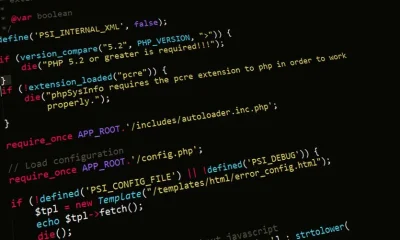

An Integrated Development Environment (IDE) is a software application that provides a comprehensive set of tools for developers in a single graphical user interface. IDEs consolidate a source code editor, build automation tools, and a debugger, creating a cohesive workbench that streamlines the entire software development lifecycle, from writing and compiling code to testing and debugging.
Unlike simple text editors, which only allow for writing code, IDEs are architected to understand the structure and semantics of a programming language. This deep awareness allows them to offer intelligent features like code completion, automated refactoring, and integrated debugging, which are critical for building and maintaining complex systems. The official roadmaps for major IDEs like Visual Studio and the JetBrains suite consistently focus on deeper AI integration for code generation, more sophisticated static analysis, and seamless cloud-native development workflows, signaling a future where the IDE acts as an intelligent partner rather than just a passive tool.
What is an IDE? Core Components Deconstructed
At its core, an IDE is an integrated system designed to maximize developer productivity by bundling essential tools into one application. While the exact feature set varies, virtually all modern IDEs are built upon a foundation of several key components that work in concert. Understanding this architecture reveals why an IDE is more than the sum of its parts.
The Source Code Editor: The Intelligent Canvas
The most visible component is the source code editor. This is far more advanced than a standard text editor like Notepad. Its primary function is to provide an intelligent interface for writing and manipulating code. Key features include:
- Syntax Highlighting: Renders code elements like keywords, variables, strings, and comments in different colors. This isn’t just cosmetic; it improves readability and helps developers spot syntax errors, like a missing quotation mark, at a glance.
- Intelligent Code Completion (IntelliSense): This is a cornerstone of modern IDEs. As a developer types, the IDE suggests completions for variables, methods, and classes based on the project’s codebase and imported libraries. This reduces typos and saves developers from having to memorize every API detail. Under the hood, the IDE builds an Abstract Syntax Tree (AST) of the code in real time, allowing it to provide contextually accurate suggestions.
- Code Navigation: In a large project with hundreds of files, finding the definition of a function or seeing all its usages is a common task. IDEs provide shortcuts like “Go to Definition,” “Find Usages,” and “Go to Implementation,” which instantly jump to the relevant code, eliminating manual searching.
The Debugger: Runtime Inspection and Analysis
The debugger is arguably the most powerful component of an IDE. It allows a developer to pause the execution of a program at a specific point and inspect its internal state. This is a fundamental leap from debugging with `print` statements. Essential debugging capabilities include:
- Breakpoints: Markers set on specific lines of code that tell the debugger to pause execution just before that line is run. Conditional breakpoints take this further, pausing only when a certain condition is met (e.g., `i > 100`), which is invaluable for debugging loops.
- Call Stack Inspection: When the program is paused, the debugger shows the call stack, which is the sequence of function calls that led to the current point of execution. This helps trace the flow of logic and understand how the program arrived in its current state.
- Variable Watching: Developers can inspect the values of variables in the current scope. They can also “watch” specific variables or expressions, seeing how their values change as they step through the code line by line.
- Memory and CPU Profiling: Advanced IDEs integrate profilers that analyze an application’s memory usage and CPU performance during a debugging session. This is critical for identifying memory leaks, performance bottlenecks, and inefficient algorithms that might otherwise go unnoticed.
Build Automation and Compilers
Software rarely consists of a single file. An IDE automates the process of compiling source code into executable binaries or packaging scripts for an interpreter. It manages dependencies, runs compilers (like `javac` for Java or `g++` for C++), and handles linking. For a developer, this means compiling a complex project is often as simple as clicking a “Build” or “Run” button. The IDE’s output window shows compiler errors and warnings, and clicking on an error typically navigates the editor directly to the offending line of code, creating a tight feedback loop.
Version Control System (VCS) Integration
Modern software development is a team sport, and version control (most commonly Git) is non-negotiable. IDEs provide a graphical interface for most Git operations. Developers can see which lines have been changed since the last commit (a feature often called “gutter indicators”), stage and commit files, create branches, and resolve merge conflicts directly within the editor. This integration prevents the constant context switching between the code and a command-line terminal, keeping the developer focused on their work.
The Spectrum of Development Environments: IDE vs. Code Editor
The line between a full-fledged IDE and a highly extended code editor has blurred significantly, largely due to the rise of powerful, plugin-driven editors like Visual Studio Code. However, fundamental architectural and philosophical differences remain. Choosing the right tool requires understanding where each one sits on the spectrum of complexity and capability.
The Classic Text Editor
At the far end of the spectrum is the simple text editor (e.g., Notepad on Windows, Nano on Linux). Its sole purpose is to create and modify plain text files. It has no concept of programming languages, syntax, or project structure. While you can write code in a text editor, it offers no assistance, making it impractical for any serious software development.
The Modern Code Editor: Lightweight and Extensible
Code editors like Visual Studio Code (VS Code), Sublime Text, and Atom represent the middle ground. They are lightweight by default but can be transformed into powerful development environments through extensions or plugins. Their core philosophy is modularity and user choice.
- Architecture: A code editor typically starts as a fast text editor with basic syntax highlighting. Its power comes from an extensive marketplace of extensions. A developer can install plugins for language support (e.g., Python, Go, Rust), linters, debuggers, and framework-specific tools.
- Performance: Because they load only the features you explicitly install, code editors generally have faster startup times and lower memory footprints than traditional IDEs. This makes them ideal for quick edits, scripting, and front-end development where a fast feedback loop is essential.
- The VS Code Phenomenon: VS Code, in particular, has pushed the boundaries of what a code editor can be. With the right extensions, it can provide debugging, terminal integration, and intelligent code completion that rival traditional IDEs. Its Language Server Protocol (LSP) was a groundbreaking innovation, allowing language analysis to run in a separate process, so a single language server can provide features like autocompletion and error-checking to any editor that supports the protocol.
The Integrated Development Environment (IDE): Heavyweight and Opinionated
Traditional IDEs like JetBrains IntelliJ IDEA, Microsoft Visual Studio, and Eclipse are at the other end of the spectrum. They are heavyweight, all-in-one applications designed to provide a complete, out-of-the-box experience for a specific ecosystem (like Java or .NET).
- Architecture: An IDE is monolithic by design. When you install IntelliJ IDEA for Java development, it comes pre-packaged with a deep understanding of the Java compiler, Maven/Gradle build systems, the JUnit testing framework, and a powerful debugger. The integration between these components is seamless and deeply ingrained in the product’s architecture.
- Key Differentiator: The most significant advantage of an IDE is its deep, semantic understanding of the codebase. It builds a comprehensive index of your entire project, enabling powerful, project-wide refactoring tools (e.g., safely renaming a method across hundreds of files), superior code navigation, and highly accurate static analysis that can detect complex bugs before compilation. While VS Code can approximate this with extensions, the integration in a dedicated IDE is often tighter and more reliable.
Comparative Analysis Table
This table summarizes the key differences in their engineering trade-offs:
| Aspect | Code Editor (e.g., VS Code) | IDE (e.g., IntelliJ IDEA) |
|---|---|---|
| Core Philosophy | Lightweight, modular, and extensible. You build your own environment. | All-in-one, opinionated, and feature-complete out of the box. |
| Performance | Fast startup, lower memory usage. Performance can degrade with many extensions. | Slower startup, higher memory usage due to project indexing and pre-loaded features. |
| Refactoring | Basic refactoring (rename, extract variable). Project-wide changes can be less reliable. | Advanced, safe, project-wide refactoring (e.g., change method signature, move class). |
| Debugging | Excellent, but requires configuration (`launch.json`) and installation of debugger extensions. | Integrated and configured out of the box. Often includes more advanced tools like profilers. |
| Best For | Web development (JavaScript, TypeScript), scripting, polyglot projects, quick edits. | Large, monolithic codebases in compiled languages (Java, C#, C++), enterprise application development. |
How IDEs Impact Developer Productivity and Code Quality
Choosing an IDE isn’t just a matter of preference; it’s an engineering decision that directly impacts team velocity and the long-term maintainability of a software project. A powerful IDE acts as a force multiplier for a developer’s skills by automating mundane tasks, reducing cognitive load, and enforcing quality standards.
Accelerating Development with Intelligent Tooling
The primary benefit of an IDE is the reduction of friction in the development process. Every moment a developer spends searching for a file, looking up API documentation, or manually fixing formatting is a moment they are not solving business problems.
- Cognitive Load Reduction: Intelligent code completion and quick access to documentation mean developers don’t have to hold as much information in their working memory. The IDE remembers the names of methods, their parameters, and their return types, freeing up mental bandwidth for focusing on algorithmic logic and business requirements.
- Automated Refactoring: Maintaining a clean codebase requires constant refactoring. An IDE’s ability to perform safe, automated refactoring is a massive productivity booster. For example, renaming a widely used class or changing a method’s signature across a large project is a risky, time-consuming manual task. An IDE can perform this operation in seconds with a guarantee that it won’t break the build. This encourages developers to make continuous small improvements, preventing technical debt from accumulating.
- Efficient Navigation: In enterprise-scale applications, the codebase can be a labyrinth of interconnected modules. An IDE’s ‘Go to Definition,’ ‘Find Usages,’ and ‘Type Hierarchy’ features act as a GPS for code. A developer can instantly trace a variable back to its origin or see every location where a specific function is called, making it far easier to understand complex control flows and data transformations.
Enhancing Code Quality and Reducing Bugs
Beyond speed, IDEs are instrumental in improving the correctness and robustness of the code being written. They provide a tight feedback loop that catches errors before they ever make it into a version control system.
- Real-time Static Analysis: While you type, the IDE is constantly analyzing your code for potential problems. It can flag common bugs like null pointer exceptions, unreachable code, resource leaks, and violations of language conventions. This is like having a senior developer constantly reviewing your code over your shoulder, offering suggestions for improvement in real time. For instance, in Java, IntelliJ IDEA can warn you that a collection is being modified while it is being iterated over, a subtle bug that can be difficult to track down at runtime.
- Integrated Linting and Formatting: Consistency is key to a readable and maintainable codebase. IDEs integrate with linters (like ESLint for JavaScript) and code formatters (like Prettier or Black) to enforce a consistent coding style across the entire team. This can be configured to run automatically on save, ensuring that all committed code adheres to the project’s standards without requiring any manual effort. This eliminates entire categories of arguments in code reviews, allowing teams to focus on the logic rather than the syntax.
- The Superiority of Integrated Debugging: As mentioned, the integrated debugger is a killer feature. Trying to debug a complex, multi-threaded application with `console.log` or `print` statements is inefficient and often ineffective. A debugger allows you to freeze the application at a precise moment, inspect the full state of memory, evaluate expressions, and step through the execution path line by line. This systematic approach is essential for diagnosing race conditions, memory corruption, and other difficult runtime errors.
By automating routine tasks and providing powerful analytical tools, an IDE allows developers to operate at a higher level of abstraction. They can focus more on architectural design and less on the mechanics of writing code, leading to faster development cycles and a higher-quality end product. This is particularly important when managing complex systems like those seen in lease management software development, where data integrity and complex business rules are paramount.
A Technical Tour of Major IDEs: A Comparative Analysis
The IDE market is dominated by a few key players, each with its own strengths, weaknesses, and target ecosystems. Choosing between them often depends on the primary programming language, project type, and team preferences. Here, we’ll conduct a technical comparison of the most prominent IDEs and code editors that function as IDEs.
The JetBrains Suite (IntelliJ IDEA, PyCharm, WebStorm, etc.)
JetBrains has built a reputation for creating the most intelligent and powerful IDEs, particularly for statically-typed languages. Their flagship product is IntelliJ IDEA, but they offer specialized IDEs for many languages.
- Key Strengths: The standout feature of JetBrains IDEs is their deep, semantic understanding of code. Their indexing engine creates a comprehensive model of the entire project, enabling unparalleled code analysis, navigation, and refactoring capabilities. For Java and Kotlin developers, IntelliJ IDEA is widely considered the gold standard. PyCharm offers exceptional support for Python, with integrations for scientific libraries like NumPy and frameworks like Django.
- Performance Profile: The main trade-off is performance. JetBrains IDEs are known for being memory and CPU-intensive, especially during the initial project indexing. Startup times can be slow for large projects. However, once the index is built, the IDE is incredibly responsive.
- Ecosystem: JetBrains offers a consistent UI and feature set across all its IDEs. The ‘All Products Pack’ subscription is popular among polyglot developers who switch between languages frequently.
- Best For: Enterprise Java/Kotlin/Scala development, professional Python and Django/Flask development, and large-scale PHP projects (with PhpStorm).
Microsoft Visual Studio (Not VS Code)
Visual Studio is the heavyweight, all-in-one IDE for the Microsoft ecosystem. It is the definitive tool for building applications on Windows and with the .NET framework.
- Key Strengths: Unmatched integration with .NET (C#, F#, VB.NET) and C++. Its debugger is legendary for its power and ability to debug complex applications, including native code.NET code, and even SQL Server stored procedures in a single session. It also has excellent tools for developing desktop applications (WPF, WinForms) and games (with deep integration for Unity and Unreal Engine).
- Performance Profile: Similar to JetBrains, Visual Studio is a large application with significant resource requirements. Large C++ solutions can take a considerable time to load and compile.
- Ecosystem: It is deeply tied to the Windows and Azure ecosystem. While recent versions have improved cross-platform capabilities with .NET Core/5+, its soul remains in the Windows world.
- Best For: Professional .NET development, Windows desktop applications, C++ game development, and enterprise applications targeting the Microsoft stack.
Visual Studio Code (VS Code)
While technically a code editor, VS Code’s vast extension ecosystem allows it to function as a full-fledged IDE for many workflows, and it has become the most popular development environment overall.
- Key Strengths: Its biggest advantages are its speed, flexibility, and massive community support. It starts quickly and maintains a low memory footprint. The extension marketplace is its killer feature, with high-quality plugins for virtually every language and framework imaginable. Its integrated terminal and Git integration are best-in-class. The Language Server Protocol (LSP) allows it to provide rich language features without the overhead of a traditional IDE.
- Performance Profile: Excellent out of the box. However, performance can degrade if a user installs too many resource-heavy extensions, blurring the line with traditional IDEs.
- Ecosystem: Language-agnostic and cross-platform (Windows, macOS, Linux). It excels in the web development world (JavaScript, TypeScript, React, Vue) and is very popular for languages like Python, Go, and Rust.
- Best For: Web development, scripting, working on polyglot projects, and developers who prefer a customizable, lightweight environment.
Eclipse
Eclipse is one of the original open-source Java IDEs and maintains a dedicated user base, particularly in the academic and enterprise Java communities.
- Key Strengths: It is free, open-source, and highly extensible via a plugin-based architecture. The Eclipse platform itself is a foundation upon which many other specialized IDEs have been built (e.g., the Android Developer Tools were originally based on Eclipse). It has robust support for Java and build systems like Maven.
- Performance Profile: Historically, Eclipse has had a reputation for being slow and clunky, though recent versions have made significant improvements. Its resource usage is generally comparable to other large IDEs.
- Ecosystem: While it supports many languages through plugins, its primary focus remains Java. Its UI and user experience are often considered less modern than those of JetBrains or VS Code.
- Best For: Developers and organizations heavily invested in the Eclipse ecosystem, certain types of Android development (though Android Studio is now standard), and those who require a completely free and open-source Java IDE.
The Economics of IDEs: Pricing Models and Total Cost of Ownership
The choice of an IDE is not just a technical decision; it is also a financial one, especially for development teams and businesses. The costs range from completely free to thousands of dollars per year per developer. Understanding the different pricing models and the hidden costs associated with each is crucial for making a sound investment.
Free and Open-Source (FOSS) Models
Many powerful development environments are available at no cost. This model is dominant in the code editor space and for some established IDEs.
- Examples: Visual Studio Code, Eclipse, NetBeans, and the Community Editions of Visual Studio and JetBrains IDEs (e.g., IntelliJ IDEA Community, PyCharm Community).
- Cost Structure: The software itself is free to download and use. The primary ‘cost’ is the time spent on configuration, finding and vetting plugins, and the lack of dedicated enterprise support.
- Hidden Costs: While the software is free, developer time is not. A team using VS Code might spend significant time standardizing a set of extensions and configurations to ensure a consistent environment for everyone. Community editions of commercial IDEs are powerful but often lack features critical for enterprise development (e.g., advanced database tools, profilers, or framework-specific support), which can lead to productivity losses or the need for supplementary paid tools.
Subscription-Based Models
This is the most common model for professional, commercial IDEs. Instead of a one-time purchase, companies pay a recurring fee, usually annually, for each developer using the software.
- Examples: JetBrains All Products Pack, IntelliJ IDEA Ultimate, PyCharm Professional, Visual Studio Professional/Enterprise.
- Cost Structure: The fees are per user, per year. Prices often decrease in the second and third years of continuous subscription to encourage customer loyalty.
Here is a representative breakdown of typical annual subscription costs for a new license:
| Product | Typical 1st Year Cost (per user) | Target Audience |
|---|---|---|
| JetBrains All Products Pack | ~$649 USD | Polyglot developers, teams working on multiple technology stacks. |
| IntelliJ IDEA Ultimate | ~$499 USD | Professional Java/Kotlin enterprise developers. |
| Visual Studio Professional | ~$539 USD (or via monthly subscription) | Professional developers and small teams on the Microsoft stack. |
| Visual Studio Enterprise | ~$2,999 USD (or via monthly subscription) | Large enterprise teams needing advanced testing, debugging, and DevOps features. |
Note: Prices are estimates as of late 2023 and can vary based on region, promotions, and volume licensing. Always check the vendor’s official website for current pricing.
Total Cost of Ownership (TCO)
The sticker price of an IDE is only part of the equation. The Total Cost of Ownership includes both direct and indirect costs.
- Direct Costs: License or subscription fees.
- Indirect Costs:
- Developer Time: The most significant cost. If a $500/year IDE saves a developer just one hour per week, the return on investment is massive. A professional IDE’s advanced debugging and refactoring tools can easily save this much time on a complex project.
- Onboarding and Training: The time it takes for a new developer to become proficient with the team’s chosen tool. A standardized, powerful IDE can speed up onboarding.
- Maintenance and Support: With commercial IDEs, you get professional support, which can be critical for resolving environment-specific issues that are blocking development. With FOSS tools, you rely on community forums and your team’s own expertise.
- Opportunity Cost: The cost of bugs that make it into production because the development environment lacked the tools to catch them early. The static analysis features of a premium IDE can prevent entire classes of defects.
- Inconsistent Code Style: When developers commit code with different formatting, the `git diff` becomes noisy and filled with whitespace changes, making it difficult to see the actual logic changes in a code review.
- CI/CD Build Failures: A developer might commit code that passes on their local machine but fails in the Continuous Integration pipeline because the CI server has stricter linting rules or a slightly different environment.
- Lost Time: New developers spend days or even weeks configuring their environment to match the rest of the team, a process filled with trial and error.
settings.json: This file can specify workspace-specific settings that override the user’s global settings. This is the perfect place to define the project’s code formatter, linter rules, and language-specific settings.extensions.json: This file recommends a list of extensions for the project. When a developer opens the project, VS Code will prompt them to install any missing recommended extensions, ensuring everyone has the necessary tooling.
For a small startup or a solo developer working on a web project, the combination of VS Code and its free extensions is often the most economical and effective choice. For a larger enterprise building a complex Java backend, the TCO of not using a tool like IntelliJ IDEA Ultimate is likely far higher than its subscription cost due to lost productivity and lower code quality.
Configuring Your IDE for Team-Based Development
When working in a team, an IDE is no longer a personal tool; it becomes a shared piece of infrastructure. Inconsistent environments across a team lead to friction, bugs, and lost time. Standardizing the IDE configuration is a critical step for ensuring that code behaves predictably on every developer’s machine and that quality standards are enforced automatically.
The Problem: “It Works On My Machine”
This classic developer excuse is often the result of environment drift. One developer might have a linter configured differently, use a different version of a compiler, or have different code formatting rules. This leads to several problems:
Solution: Committing Configuration to Version Control
The solution is to treat your IDE and project configuration as code. Most modern IDEs and code editors store their settings in files that can be committed to your Git repository. This ensures that anyone who clones the project gets the correct configuration automatically.
For Visual Studio Code
VS Code uses a `.vscode` directory at the root of the project. Two key files here are:
Here is an example of a `.vscode/settings.json` for a TypeScript project using Prettier and ESLint:
{
  // Use Prettier as the default formatter for all supported file types
  "editor.defaultFormatter": "esbenp.prettier-vscode",
  // Enable format on save to automatically format code
  "editor.formatOnSave": true,
  // Enable ESLint to run on save and automatically fix simple issues
  "editor.codeActionsOnSave": {
    "source.fixAll.eslint": true
  },
  // Tell the ESLint extension which languages to validate
  "eslint.validate": ["javascript", "javascriptreact", "typescript", "typescriptreact"]
}
For JetBrains IDEs (IntelliJ, PyCharm)
JetBrains IDEs use an `.idea` directory. While much of this directory is user-specific and should be included in your `.gitignore` file, you can share specific configurations.
- Code Style Schemes: You can define a project-specific code style (indentation, spacing, etc.) and save it as a project-level scheme. The relevant XML configuration files within the `.idea/codeStyles/` directory can then be committed to Git.
- Run/Debug Configurations: Complex run and debug configurations can be marked as “Shared” in the IDE. This saves the configuration as an XML file in `.idea/runConfigurations/`, which can be committed. This is incredibly useful for standardizing how developers run the application or its test suites.
- EditorConfig for Cross-IDE Consistency: For properties like indentation style, line endings, and character sets, the best practice is to use an
.editorconfigfile. This is a standard that is supported by virtually all major IDEs and editors. By placing an.editorconfigfile in the project root, you can enforce basic coding styles regardless of which IDE a team member prefers.
By versioning these configuration files, you create a “self-bootstrapping” project. A new developer can clone the repository, open it in their IDE, and immediately have the correct formatters, linters, and build configurations in place. This dramatically reduces setup time and eliminates an entire class of environment-related bugs.
The Role of AI and Machine Learning in Modern IDEs
The integration of Artificial Intelligence and Machine Learning is the most significant evolution in IDEs in the last decade. These technologies are transforming the IDE from a passive set of tools into an active, intelligent assistant that can write code, detect complex bugs, and offer contextual suggestions. This shift is primarily driven by Large Language Models (LLMs) trained on massive datasets of open-source code.
AI-Powered Code Completion: GitHub Copilot and Beyond
The most prominent example of AI in IDEs is GitHub Copilot, which is deeply integrated into VS Code and other editors. It goes far beyond traditional IntelliSense.
- How it Works: Copilot analyzes the context of your code (including surrounding files and comments) and suggests entire lines or blocks of code. You can write a comment describing the function you want to create (e.g., `// function to fetch user data from an API and parse the JSON`), and Copilot will often generate a complete, working implementation.
- Productivity Impact: This is a massive accelerator for writing boilerplate code, unit tests, and common algorithms. It reduces the need to search for examples on sites like Stack Overflow. However, it is not infallible. The generated code must be carefully reviewed for correctness, security vulnerabilities, and adherence to project-specific patterns. It is a powerful assistant, not a replacement for a skilled developer.
- Competitors: JetBrains has its own AI Assistant, which provides similar code generation features along with other capabilities like generating commit messages and explaining code. Other tools like Tabnine and Amazon CodeWhisperer also compete in this space.
Intelligent Bug Detection and Code Review
AI is also being used to enhance static analysis tools, allowing them to find more subtle and complex bugs that traditional rule-based linters might miss.
- Pattern Recognition: AI models can be trained to recognize anti-patterns or common mistakes from thousands of open-source projects. For example, an AI-powered tool might detect a potential race condition in concurrent code by recognizing a pattern that has led to bugs in other projects, even if it doesn’t violate a simple, predefined rule.
- Automated Code Reviews: Tools like GitHub Copilot for Pull Requests can automatically review a PR, describe the changes in plain English, and flag parts of the code that lack sufficient test coverage or deviate from established patterns. This helps human reviewers focus their attention on the most critical parts of the code.
The Engineering and Ethical Considerations
While powerful, the rise of AI in IDEs introduces new challenges:
- Code Quality and Security: The code generated by AI is based on patterns from public data, which may not always follow best practices or be secure. A junior developer might blindly accept a suggestion that contains a subtle security flaw, like an SQL injection vulnerability. Teams must establish strict policies for reviewing and testing all AI-generated code.
- Intellectual Property: The legal implications of using code generated by models trained on open-source repositories are still being debated. Companies must be aware of the licenses of the code the models were trained on and consider the potential for license compliance issues.
- Over-reliance: There is a risk that developers, especially those early in their careers, may become overly reliant on these tools and fail to develop a deep understanding of the underlying language and frameworks. The IDE becomes a crutch rather than a tool for learning.
Despite these concerns, AI is fundamentally reshaping the development experience. The future of the IDE is one where the environment actively collaborates with the developer, automating not just trivial tasks but also complex ones like writing documentation, generating tests, and even suggesting architectural improvements. This makes the IDE an even more critical component in the modern software development toolchain, especially when comparing different service models like Software as a Service vs Platform as a Service, where development speed is a key competitive advantage.
Cloud IDEs and Remote Development: The Next Frontier
The traditional model of software development involves running an IDE on a local machine with a local copy of the codebase. However, the rise of cloud computing and distributed teams has given birth to a new paradigm: cloud IDEs and remote development. This approach decouples the development environment from the local machine, offering significant benefits in terms of consistency, scalability, and security.
What are Cloud IDEs?
A cloud IDE is a development environment that runs on a remote server and is accessed through a web browser or a lightweight client application. The entire toolchain, including the code editor, compilers, debuggers, and terminals, lives in the cloud. The developer’s local machine simply acts as a thin client.
Prominent examples include:
- GitHub Codespaces: Allows you to launch a complete, containerized development environment for any GitHub repository with a single click. The environment is defined by a `devcontainer.json` file, ensuring perfect consistency. It runs a full version of VS Code in the browser.
- Gitpod: A similar platform that focuses on providing ephemeral, pre-built developer workspaces. When you open a project, Gitpod provisions a fresh, ready-to-code environment based on a configuration file in your repository.
- AWS Cloud9: An IDE provided by Amazon Web Services that is tightly integrated with the AWS ecosystem, making it easy to build and debug applications that run on services like Lambda and EC2.
The Architectural Advantages of Remote Development
From an engineering and organizational perspective, this model solves several long-standing problems:
- Environment Consistency: This is the primary benefit. By defining the entire development environment as code (e.g., using a Dockerfile within a devcontainer), you eliminate the “it works on my machine” problem entirely. Every developer, and the CI/CD pipeline, uses the exact same containerized environment, from the operating system version down to the specific versions of compilers and libraries.
- Faster Onboarding: A new developer can be productive within minutes. Instead of spending days setting up a complex local environment, they can simply open a repository in a cloud IDE and have a fully configured, running workspace instantly.
- Scalable Resources: Local machines, especially laptops, have limited CPU and memory. A complex build or an intensive test suite can bring a developer’s machine to a halt. Cloud IDEs run on powerful server infrastructure, allowing you to provision as much CPU and RAM as needed for your tasks. You can compile a massive C++ project on a 32-core machine without slowing down your local machine at all.
- Enhanced Security: With remote development, the source code never lives on the developer’s local laptop. It remains centralized in the cloud. This is a huge security win for companies, as it mitigates the risk of data loss from a lost or stolen laptop. Access can be tightly controlled and monitored through centralized identity and access management (IAM) systems.
The Trade-offs and Challenges
Despite the advantages, cloud-based development is not without its challenges:
- Network Dependency: The biggest drawback is the requirement for a stable, low-latency internet connection. Any network disruption can bring development to a halt. While some tools have offline support, the experience is generally degraded.
- Cost: Running development environments in the cloud is not free. The costs are typically based on compute hours and storage usage. For a large team, these costs can become significant and must be carefully managed and monitored.
- Tooling Limitations: While browser-based versions of IDEs like VS Code are incredibly powerful, they may not support every extension or workflow that a desktop IDE does. Certain types of development, like mobile app development that requires an emulator or embedded systems development that requires a physical connection to hardware, can be difficult or impossible to do in a purely cloud-based environment.
The future is likely a hybrid model. Many desktop IDEs, including VS Code and the JetBrains suite, now offer excellent remote development features. They allow you to run the IDE’s UI locally while connecting to a remote server where the code and toolchains reside. This gives you the rich, responsive user experience of a native application combined with the power and consistency of a remote backend, representing the best of both worlds.
Choosing the Right IDE for Your Project and Team
Selecting an IDE is a strategic decision that should be based on a methodical evaluation of your project’s technical requirements, your team’s skills, and your organization’s goals. There is no single “best” IDE; the optimal choice is always context-dependent. Here is a framework for making an informed decision.
1. Analyze the Technology Stack
The primary driver of your choice should be your core programming language and framework. Certain IDEs are purpose-built for specific ecosystems and offer an unmatched level of integration.
- Java/Kotlin/JVM: If you are building on the Java Virtual Machine, IntelliJ IDEA Ultimate is the industry standard. Its deep understanding of the JVM, build tools like Maven and Gradle, and frameworks like Spring provides a significant productivity advantage that is difficult to replicate with a general-purpose editor.
- .NET (C#, F#): For development on the Microsoft stack, Visual Studio is the canonical choice. Its integration with the .NET compiler, debugger, and Azure services is unparalleled.
- JavaScript/TypeScript/Web: For front-end or Node.js development, Visual Studio Code is the dominant player. Its lightweight nature, fast feedback loop, and enormous ecosystem of web-focused extensions make it ideal for the rapid iteration cycles common in web development.
- Python: For data science and web development with Django/Flask, PyCharm Professional offers excellent features. However, VS Code also has outstanding Python support and is a very popular choice in the Python community, especially for scripting and data analysis in Jupyter notebooks.
- C/C++: This is more fragmented. Visual Studio is dominant for Windows-based C++ development. For Linux, many developers use a combination of a powerful editor like VS Code (with the C/C++ extension) or CLion (from JetBrains) and command-line build tools.
2. Evaluate Project Scale and Complexity
The size and architecture of your project matter. A small script or a microservice can be easily managed in a lightweight code editor. However, a large, monolithic enterprise application with millions of lines of code benefits immensely from the powerful indexing and refactoring capabilities of a full-fledged IDE.
- Small Projects/Scripts: VS Code or Sublime Text are excellent. Their fast startup times and low overhead are perfect for quick edits and small-scale tasks.
- Large Monolithic Applications: IntelliJ IDEA or Visual Studio are often better suited. Their ability to safely refactor code across the entire project, navigate complex inheritance hierarchies, and analyze dependencies is critical for maintaining large codebases.
3. Consider Team Skills and Preferences
While standardization is important, you must also consider your team’s existing expertise. Forcing a team of seasoned Vim experts to use a graphical IDE might lead to a temporary drop in productivity. A pragmatic approach is often best.
- Standardize the Essentials: Use a tool like
.editorconfigto enforce universal standards like indentation and line endings. Commit shared linter and formatter configurations to the repository. This ensures baseline consistency regardless of the editor. - Allow Flexibility where Possible: If the core quality gates (linting, testing, formatting) are automated in your CI/CD pipeline, you can afford to let developers choose between a few approved tools (e.g., VS Code or WebStorm for a web project).
- The Polyglot Factor: If your team works on multiple microservices written in different languages, a flexible tool like VS Code or a subscription like the JetBrains All Products Pack can be more cost-effective and efficient than licensing multiple single-language IDEs.
4. Assess Budget and Total Cost of Ownership
As discussed earlier, cost is a major factor. A startup with limited funding will likely gravitate towards free tools like VS Code or the Community editions of commercial IDEs. An established enterprise, however, should view the subscription cost of a premium IDE as an investment in developer productivity. The cost of a $500/year license is negligible compared to the salary of the developer using it. If the tool saves them even a few hours a month, it pays for itself many times over.
By systematically working through these four areas, you can move from a subjective preference to an objective, evidence-based decision that aligns your tooling with your technical and business objectives.
Explore Our Software Development Guides
This article is part of our comprehensive library on software development and outsourcing strategies. For more in-depth technical analysis and engineering guides, explore our complete directory.
Explore our complete Software Development, Outsourcing directory for more guides.
Factors That Affect Development Cost
- License/Subscription Model (Free vs. Paid)
- Number of Developer Seats
- Edition (Community vs. Professional vs. Enterprise)
- Cloud Compute and Storage Costs (for Cloud IDEs)
- Developer Time for Configuration and Maintenance
- Cost of Supplementary Paid Plugins
Costs can range from $0 for open-source tools to several thousand dollars per developer per year for enterprise-grade IDEs with advanced features and support.
An Integrated Development Environment is far more than a simple text editor; it is the central workbench for the modern software engineer. By tightly integrating a smart editor, a powerful debugger, build automation, and version control, IDEs create a fluid and productive workflow. This allows developers to offload cognitive tasks to the machine, freeing them to focus on the complex logic and creative problem-solving that truly delivers business value.
The choice between a lightweight, extensible code editor like VS Code and a heavyweight, all-in-one IDE like IntelliJ IDEA or Visual Studio is a critical engineering trade-off. The decision hinges on the specific technology stack, the scale of the project, and the team’s workflow. As development continues to evolve with the rise of AI assistants and cloud-based environments, the IDE will only become more integral, acting as an intelligent partner in the creation of robust and maintainable software.
NR Studio builds custom web apps, mobile apps, SaaS platforms, and internal tools for growing businesses. If you’re working through a technical decision, feel free to reach out — no commitment required.